How to Create AI Voiceovers for Videos
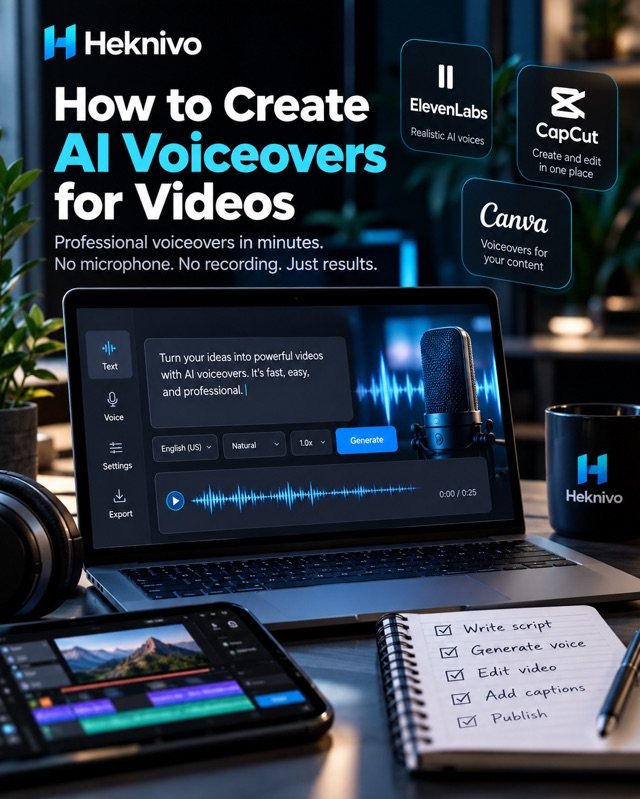
Creating a professional voiceover used to require a microphone, recording equipment, and sometimes a professional voice actor.
Today, AI voice generators can turn written text into natural-sounding speech in just a few minutes. This makes voiceovers much easier to create for YouTube videos, Instagram Reels, TikTok videos, tutorials, presentations, and other types of content.
In this guide, you’ll learn how to create an AI voiceover from scratch and how to make it sound more natural.
What Is an AI Voiceover?
An AI voiceover is audio generated from written text using artificial intelligence.
You provide a script, choose a voice, and the AI converts your text into spoken audio.
Depending on the tool, you may be able to control:
- Voice style
- Language
- Accent
- Speed
- Tone
- Emotion
- Pronunciation
This allows creators to produce narration without recording their own voice.
Why Use AI Voiceovers?
AI voiceovers can be useful for creators who don’t want to appear on camera or record their own voice.
Some common uses include:
- YouTube videos
- Instagram Reels
- TikTok videos
- Tutorials
- Educational content
- Product videos
- Explainer videos
- Presentations
- Marketing content
The biggest advantage is convenience. You can create and edit a voiceover without needing professional recording equipment.
Step 1: Write Your Script
The first step is creating a good script.
You can write it yourself or use an AI writing assistant to help create a first draft.
For example:
Write a 45-second script explaining three useful AI tools for beginners. Use simple conversational English and start with an attention-grabbing hook.
Always review the generated script before using it.
Make sure the information is accurate and sounds like something a real person would say.
Step 2: Choose an AI Voice Generator
There are many AI voice-generation platforms available.
Popular options include:
ElevenLabs
ElevenLabs offers AI-generated voices with different languages, styles, and voice characteristics.
It is widely used for narration, videos, podcasts, and other content.
CapCut
CapCut includes AI voice and text-to-speech features that can be convenient if you already edit your videos there.
You can create the voiceover and continue editing the video within the same workflow.
Canva
Canva provides AI-powered features that can help creators produce content, including voice-related tools depending on the available features and plan.
It can be useful when you want to combine voiceovers with graphics and video in one workspace.
Other AI Voice Tools
Other platforms offer different voices, languages, accents, and pricing options.
Before choosing a service, check its current features, commercial-use terms, and available free limits.
Step 3: Paste Your Script
Once you’ve selected your tool, copy your script and paste it into the text-to-speech section.
Don’t paste extremely long paragraphs.
Instead, divide the script into short sections.
For example:
AI is changing the way we create content.
Pause.
But you don’t need expensive equipment to get started.
Pause.
Here are three tools worth trying.
Short sections can make it easier to control the pacing and edit the final audio.
Step 4: Choose the Right Voice
Voice selection can dramatically change the feeling of your video.
For educational content, a clear and calm voice may work well.
For short-form social media content, a more energetic voice may be appropriate.
Consider:
- Male or female voice
- Age and tone
- Accent
- Speaking speed
- Energy level
- Professional or casual style
Choose a voice that matches your audience and topic.
Step 5: Make the Voice Sound Natural
One of the biggest mistakes creators make is generating a voiceover and using it immediately without editing.
AI voices can sound much better when the script is written for speech.
Instead of:
Artificial intelligence provides numerous opportunities for businesses to improve productivity.
Try:
AI can help businesses save time and get more done.
Shorter sentences are generally easier to understand.
You can also use punctuation to create natural pauses.
Step 6: Adjust the Speed
If the voice sounds too fast, slow it down slightly.
If it sounds too slow, increase the speed.
Don’t make extreme changes.
Your audience should be able to understand every word without feeling that the narration is dragging.
For educational videos, clarity is usually more important than speed.
Step 7: Add the Voiceover to Your Video
After generating the audio, import it into your video editor.
Then synchronize it with:
- Images
- Screen recordings
- Video clips
- Animations
- Captions
- Transitions
For short-form content, changing the visuals regularly can help maintain attention.
Step 8: Add Captions
Captions are useful for viewers who watch videos without sound.
You can generate captions from the AI voiceover using your video editor.
Keep captions:
- Easy to read
- Short
- Properly timed
- Large enough for mobile screens
Avoid covering important parts of the video with text.
How to Make AI Voiceovers More Engaging
A good voice isn’t enough. The script matters just as much.
Start with a strong hook.
Instead of:
Today we’re going to talk about AI tools.
Try:
You’re probably wasting hours on tasks AI can finish in minutes.
Then quickly explain the value of the video.
Keep unnecessary introductions short and focus on the information viewers came for.
A Useful AI Voiceover Prompt
You can use this prompt to create a script before generating your voiceover:
Write a natural 45-second voiceover script for a short video about [TOPIC].
Start with a strong hook in the first sentence.
Use conversational language and short sentences.
Avoid complicated words and unnecessary filler.
Make the script sound natural when spoken aloud.
End with a short call to action.
This gives you a script specifically designed for narration rather than an article.
Common Mistakes to Avoid
Using a robotic script
Writing that sounds good on paper doesn’t always sound good when spoken.
Making the video too long
For short-form content, get to the main point quickly.
Choosing the wrong voice
A serious topic may not work well with an overly energetic voice.
Ignoring pronunciation
Some AI tools may pronounce names, technical terms, or abbreviations incorrectly.
Listen to the entire voiceover before publishing.
Using copyrighted voices or unauthorized voice cloning
Only clone or imitate a person’s voice when you have the appropriate permission and the service allows it.
Are AI Voiceovers Free?
Some AI voice tools offer free plans or limited free usage, while others require a subscription.
Free plans may have restrictions such as:
- Limited characters
- Limited audio generation
- Fewer voices
- Watermarks
- Restrictions on commercial use
Always check the current pricing and licensing terms before using AI-generated audio for commercial content.
Final Thoughts
AI voiceovers make video production much easier for creators who don’t want to record their own voice.
With a good script, the right voice, natural pacing, and suitable visuals, you can create professional-looking narrated videos without expensive recording equipment.
The most important thing is not simply choosing the most realistic AI voice.
A great voiceover starts with a great script.
Write for people, keep the narration natural, and use AI as a tool to make the production process faster and easier.


Comments
Post a Comment